How to test your audio latency
- Connect the headphones or speakers you want to test and set the volume so the clicks are clearly audible.
- Press Start test and tap along with the flashing circle, using Space on a keyboard or your finger on the pad. Aim to tap exactly on the flash, the way you’d tap your foot to music.
- When the circle disappears, tap along with the clicks you hear. Look away from the screen so you follow only the sound.
- Read your result. The number is how many milliseconds your sound arrives after the picture. The first 4 taps of each step are warm-up and aren’t counted.
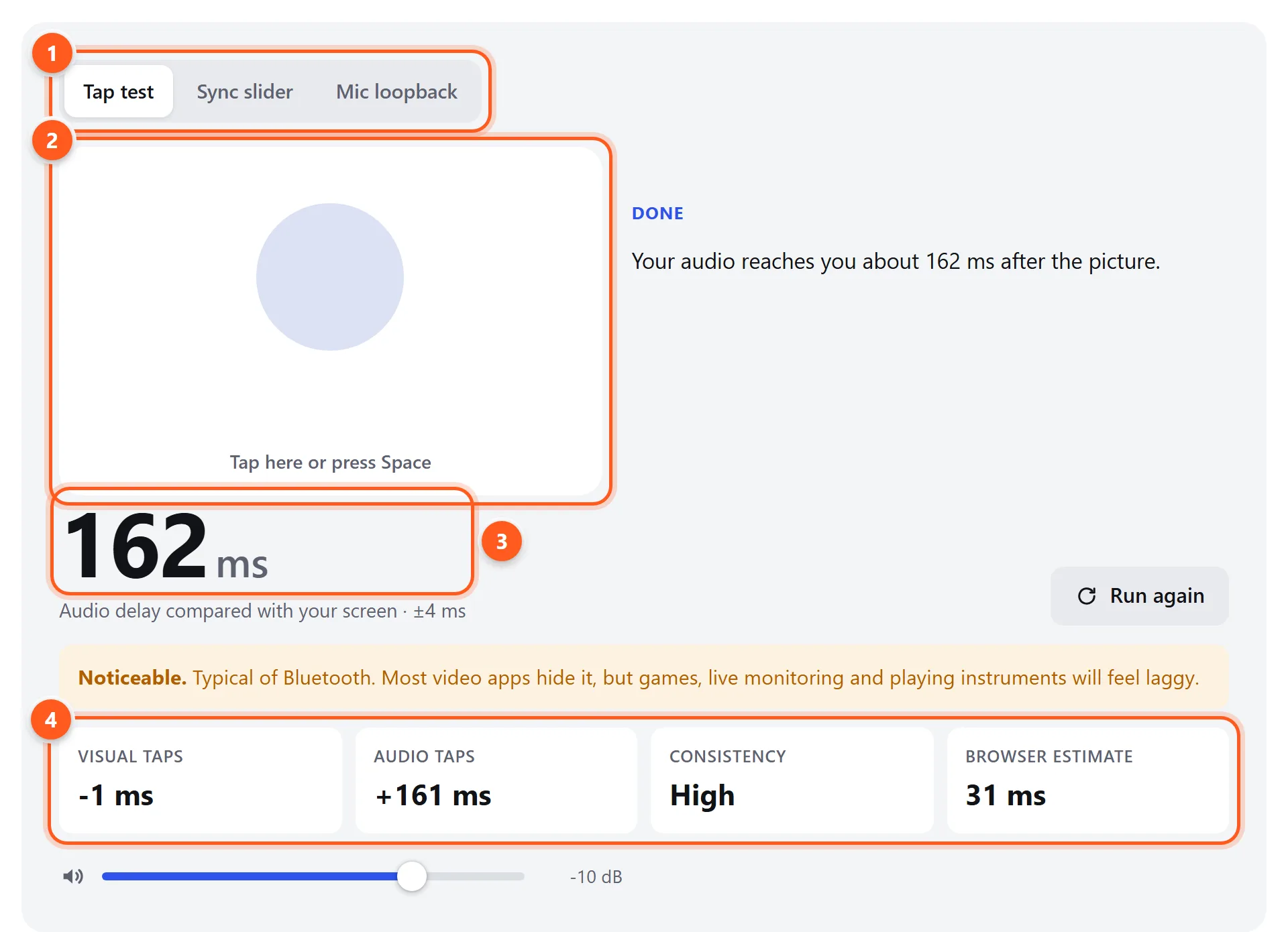
- Pick a method. The Tap test works everywhere, including Bluetooth. Sync slider is for lip-sync. Mic loopback gives a precise round-trip time on speakers.
- The tap pad. Tap anywhere on it, or press Space.
- Your audio delay, with the margin of error for this run.
- Details: your average timing in each step, how steady your taps were, and the delay your browser reports (which usually doesn’t include Bluetooth).
What is audio latency?
Audio latency is the time between a sound being produced and you hearing it. Every step adds a little: the app’s audio buffer, the operating system’s mixer, the driver, the connection to your speakers or headphones, and the headphones’ own processing. Wired audio usually adds 5–20 ms. Bluetooth adds far more, because the audio has to be compressed, sent over the radio in packets, buffered against dropouts, and decoded.
There are three kinds of latency. Output latency is from the computer to your ears. It’s what you notice in games and video. Input latency is from a microphone into the computer. Round-trip latency is both together, and it matters when you play an instrument or sing while hearing yourself through the computer.
Typical latency by connection
These are typical one-way output delays measured with this kind of test. Your device may be better or worse.
| Connection | Typical latency | Notes |
|---|---|---|
| Built-in speakers, wired headphones (3.5 mm) | 5–30 ms | Mostly operating system buffering |
| USB audio interface (ASIO / Core Audio) | 3–15 ms | Lower with smaller buffer sizes in your music software |
| 2.4 GHz wireless gaming headset (USB dongle) | 15–40 ms | The best wireless option for games |
| HDMI / ARC / eARC to TV, soundbar or receiver | 20–120 ms | Depends on TV processing and its game mode |
| Bluetooth LE Audio (LC3) | 30–100 ms | Newer phones, Windows 11 PCs and earbuds |
| Bluetooth aptX Low Latency / Adaptive (low-latency mode) | 40–80 ms | Both ends must support it |
| Bluetooth aptX / aptX HD | 100–160 ms | Common on Android and some Windows PCs |
| Bluetooth AAC (AirPods, iPhone, Mac) | 120–220 ms | Apple devices compensate in video apps |
| Bluetooth SBC (default codec) | 150–250 ms | Used when no better codec is shared |
| Earbuds with a “game mode” | 60–100 ms | Trades some stability for lower delay |
How to reduce Bluetooth audio delay
- Turn on game mode or low-latency mode in your earbuds’ app, for example Galaxy Wearable, Nothing X, JBL Headphones, Soundcore or Jabra Sound+. Then measure again to confirm it helped.
- Choose a better codec on Android. Enable Developer options (tap Build number 7 times in Settings → About phone), then use Bluetooth audio codec while connected. aptX Adaptive or LC3 is fastest. LDAC sounds good but has high latency.
- Use LE Audio on Windows 11 if your PC and earbuds support it: Settings → Bluetooth & devices → Devices → turn on Use LE Audio when available.
- Keep the signal strong. Weak or crowded radio links make headphones enlarge their buffer. Stay close, and keep the phone or PC out of your back pocket and away from USB 3 hubs and Wi-Fi routers.
- For gaming or music, use wired or a 2.4 GHz dongle. No Bluetooth codec matches a cable, and 2.4 GHz gaming headsets typically get under 40 ms.
- On Windows, close apps that use the headset microphone. They switch Bluetooth headphones into hands-free mode, which also degrades sound.
How to fix lip-sync problems
Use the Sync slider method above. It tells you how much to shift the audio, and in which direction. Then enter that value here:
- TV: look for AV sync, Lip sync or Audio delay in the sound settings. For example, LG: Sound → AV Sync Adjustment; Sony: Sound → A/V sync; Samsung: Sound → Expert Settings → Digital Output Audio Delay (for optical and ARC output). Also try turning on Game mode, which cuts video processing delay.
- Soundbar or AV receiver: most have an AV Sync or Lip Sync setting in their menu or remote app. Enable Auto lip sync over HDMI if available.
- VLC: press J to make audio 50 ms earlier, or K to make it 50 ms later. You can also use Tools → Track Synchronization. If audio is behind, press J (result in ms ÷ 50) times.
- OBS Studio: right-click the audio mixer → Advanced Audio Properties → Sync Offset. A positive value delays that audio source to match a delayed camera.
How each method works
Tap test
A typical online latency test asks you to react to a beep, so most of what it measures is your reaction time (around 200 ms), which varies a lot from one tap to the next. When you tap along to a rhythm, you anticipate each beat, so reaction time drops out. The test first measures your timing against a flashing circle, which captures your personal tapping habit and your screen and keyboard delays. Then it measures your timing against clicks. Clicks are scheduled on the audio clock, so the only extra delay in the second step is the audio path. The difference between the two steps is your audio delay relative to the picture. Outlier taps are discarded, and the margin shown is the statistical uncertainty of your run.
Sync slider
A flash and a click are scheduled for the same moment, and the slider delays the flash. When they look and sound simultaneous to you, the slider value equals how late the audio arrives compared with the picture. This is exactly the number a TV or media player’s audio delay setting needs. A negative value means the picture is the late one.
Mic loopback
The test plays five clicks at randomized intervals and records your microphone, with echo cancellation and noise suppression turned off. Every recorded sample is timestamped on the same audio clock that scheduled the clicks. So the gap between each click being sent and its arrival in the recording is the full round trip: output buffering, the speaker, sound traveling through the air (about 3 ms per meter), the microphone and input buffering. It’s precise to about a millisecond, but it can’t hear headphones unless you hold an earbud right against the microphone.