How to test your speakers
- Turn the volume down to about a third. Raise it gradually during the test. Low bass and high tones can surprise you at full volume.
- Channels: click Left, Center and Right. Each speaker should say its own name, and “Center” should seem to float between them.
- Sweep: play the 30-second sweep from 20 Hz to 20 kHz. The tone should rise smoothly, without buzzing, crackling, gaps or sudden jumps in loudness. Press Mark where it buzzes if you hear a problem.
- Rattle: the slow bass sweep shakes loose parts. If something buzzes, use the fixed-frequency buttons to hold that pitch while you find the source.
- Polarity: switch between A and B. A should sound fuller and more centered.
- Pink noise: compare Left and Right. Both should sound equally loud and have the same tone.
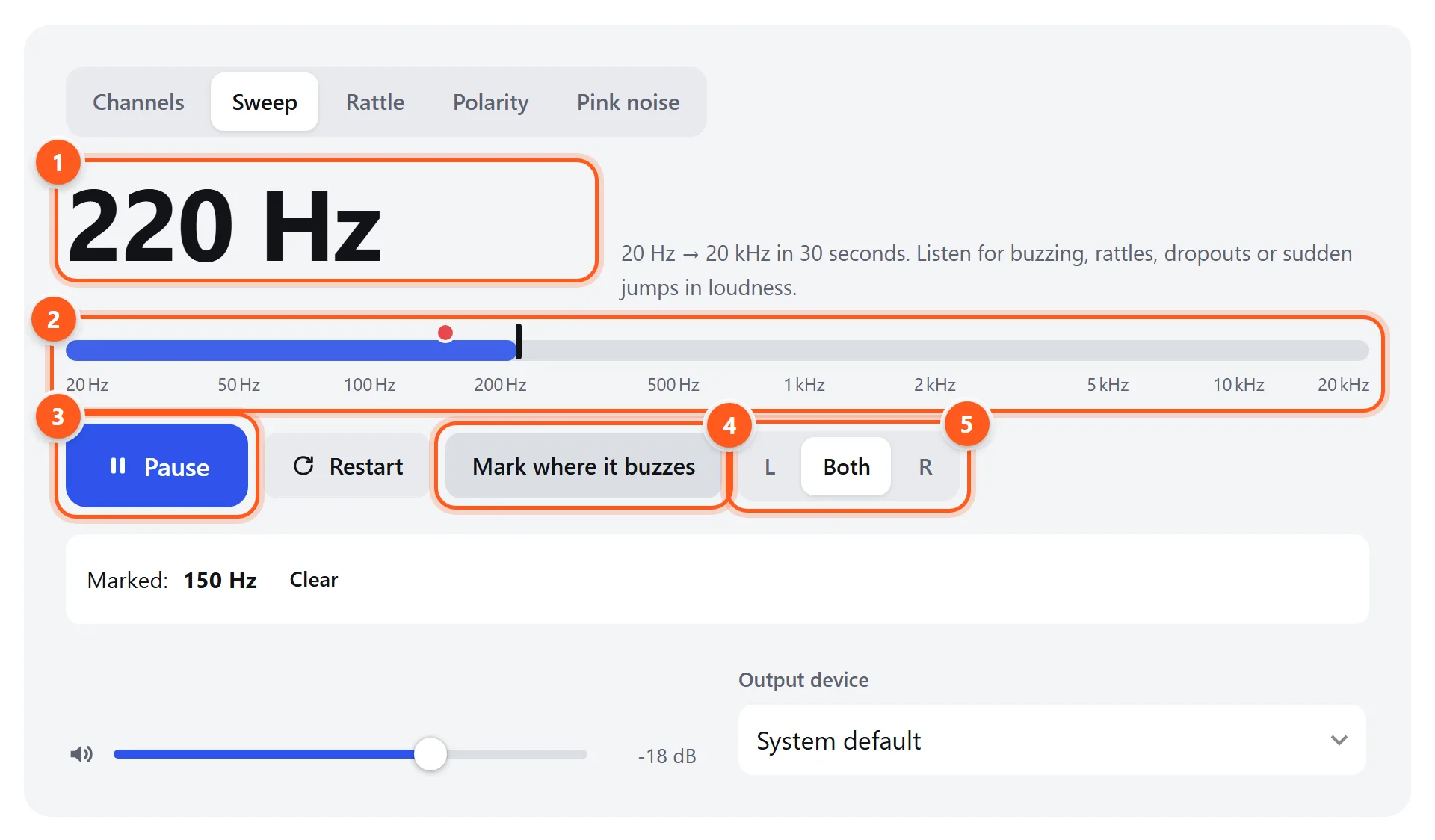
- The current frequency of the sweep.
- Progress through the audible range. Click or drag the bar to jump to any frequency.
- Pause or resume. Restart starts again from 20 Hz.
- Marks the current frequency when you hear a buzz. Marks appear as red dots on the bar and in a list below.
- Sweep one speaker at a time to compare them.
Computer and laptop speakers
Before testing, check that the right output is selected. On Windows, open Settings → System → Sound and choose your speakers under Output. On a Mac, open System Settings → Sound → Output. In Chrome and Edge you can also pick the output device directly in the tool above. Laptop speakers have tiny drivers, so expect almost nothing below 150 Hz in the sweep. That’s normal, not a fault.
Bluetooth speakers
Most portable Bluetooth speakers are mono or have their two drivers only a few inches apart, so the Channels test will sound nearly centered whichever button you press. Use the Sweep and Rattle tabs instead: they show whether the speaker distorts or buzzes at higher volume. If the sound cuts out or stutters, move the phone closer and away from Wi-Fi routers and microwaves.
Home stereo and bookshelf speakers
Connect the computer or phone to your amplifier, then run all five tabs from your normal listening seat. Pay most attention to Polarity: a reversed wire on one speaker is common after moving or rewiring and makes the whole system sound thin. If one speaker is silent, swap the left and right speaker cables at the amplifier. If the silence moves to the other side, the amplifier channel or cable is at fault. If it stays, the speaker is.
What to listen for
| Test | Good result | Signs of a problem |
|---|---|---|
| Channels | Each word comes only from its own speaker | Swapped sides, sound from both, or one side silent |
| Sweep | A smooth, continuous rise in pitch | Buzzing, crackling, dropouts, or one range much louder than the rest |
| Rattle | Clean bass tones that just fade out at the low end | Buzzing, rattling or flapping at specific frequencies |
| Polarity | A sounds fuller and more focused than B | B sounds fuller, or the bass is thin in both |
| Pink noise | Left and right sound the same; Both sits in the middle | One side duller, quieter or harsher |
Troubleshooting speaker problems
No sound at all
- Check that the speakers are powered on, that any volume knob on the speakers is turned up, and that the input selector on the amplifier matches the cable you’re using.
- Make sure the browser tab isn’t muted, and that your system output is set to these speakers, not a monitor or headset.
- For USB and Bluetooth speakers, unplug or disconnect them, wait ten seconds, and reconnect.
One speaker doesn’t play
- Check the balance setting. Windows: Settings → System → Sound → your speakers → Left/Right volume. macOS: System Settings → Sound → Output → Balance.
- On powered desktop speakers, one speaker usually contains the amplifier and feeds the other through a thin cable. Reseat that cable at both ends.
- Swap the two speakers. If the silence follows the speaker, the speaker or its cable is faulty. If it stays on the same side, the problem is the amplifier or the source.
Buzzing or rattling
Run the Rattle tab and note the frequencies where it buzzes. Then hold one of those frequencies with the buttons below the sweep and lightly press on the grille, the cabinet panels, the screws around the driver and anything nearby, like a shelf, picture frame or window. When the buzz stops, you’ve found it. A rattle that appears at every frequency usually means a torn surround or a rubbing voice coil, which needs repair or replacement.
Hum that’s always there
A constant low hum, even with nothing playing, is usually a ground loop or interference from mains electricity. It sits at the mains frequency: 60 Hz in North America and in Europe and most of Asia. Compare it with these examples: and (a harsher version with harmonics). To fix it, plug all your audio gear into the same power strip, keep audio cables away from power cables, and try a ground loop isolator on the connection between the computer and the speakers.
Distortion at higher volume
If the sweep sounds clean at low volume but harsh when louder, the speaker or its amplifier is reaching its limit. Distortion usually starts in the bass first. Lower the volume, reduce bass boost in your EQ or sound enhancement app, and turn off “loudness” settings. If distortion appears even at low volume, check for a damaged cone or loose connection.
Weak or no bass
Hear how low your speakers really go with these examples: . If you can hear 100 Hz but not 40 Hz, that’s normal for most desktop and bookshelf speakers. If the bass is weak everywhere, check the Polarity tab first: a reversed speaker wire cancels bass. Moving speakers closer to a wall also boosts bass. For a detailed check, use the bass test.
Speaker placement tips
- Equilateral triangle. Place the two speakers and your listening position at the corners of a triangle with equal sides, so the speakers are as far apart as you are from each one.
- Tweeters at ear height. High frequencies are directional. Tilt or raise desktop speakers so the small tweeters point at your ears.
- Toe-in. Angle the speakers slightly toward you. Adjust until the Center test sounds sharp and focused, right between the speakers.
- Wall distance. Speakers close to a wall or corner get more bass, sometimes boomy bass. Start about 1–2 ft (30–60 cm) from the wall and adjust by ear with the Rattle sweep.
- Symmetry. Put both speakers in similar surroundings. A speaker in a corner and another in open space will sound different.