How to use the surround sound test
- Choose 5.1 or 7.1 to match your speaker system.
- Press Play all speakers. A voice names each speaker in turn (front left, center, front right, then around the room clockwise, then the subwoofer), and the speaker lights up in the diagram. Each one you’ve heard gets a check mark.
- Check each sound comes from the right place. Tap any single speaker to replay it.
- Switch to Noise or Both to compare speaker levels. Steady noise makes it much easier to hear when one speaker is louder or quieter than the others.
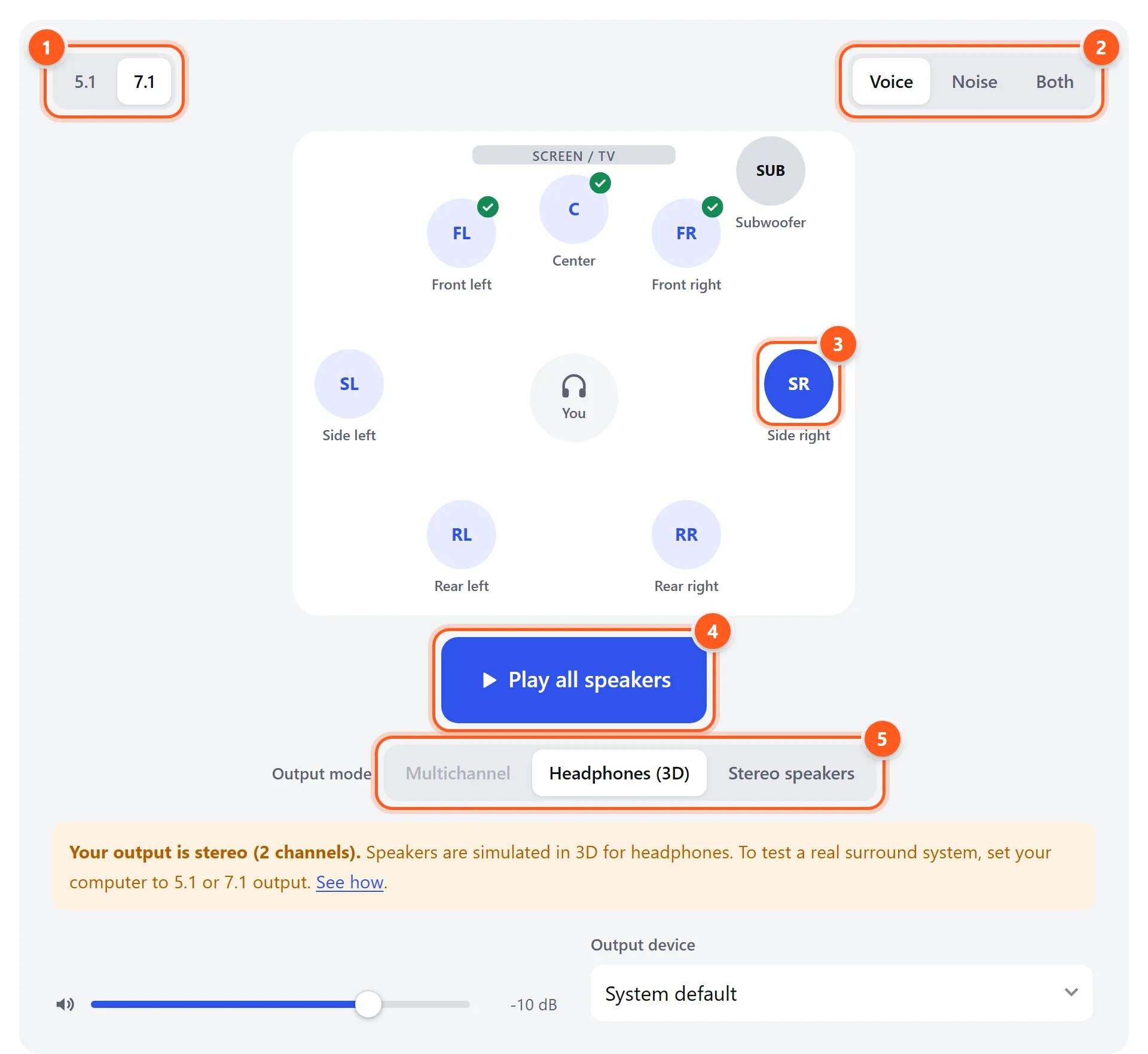
- Speaker layout: 5.1 or 7.1.
- Test sound: a spoken channel name, pink noise for level matching, or both.
- Tap any speaker to play it. The one playing lights up, and played speakers get a check mark.
- Play every speaker in order, clockwise, then the subwoofer.
- Output mode. Multichannel is enabled automatically when your device supports 6 or 8 channels.
Multichannel, headphone and stereo modes
When you first press play, the test asks your browser how many output channels your sound device has, and picks the best mode:
| Mode | When it’s used | What happens |
|---|---|---|
| Multichannel | Your device reports 6+ channels (5.1) or 8+ channels (7.1) | Each speaker gets its own discrete channel, like a receiver’s built-in test tones. This is a true surround test. |
| Headphones (3D) | Stereo output, which is the default for headphones | Each speaker position is simulated with HRTF 3D audio, so sounds seem to come from around you. |
| Stereo speakers | Stereo output with two speakers | Speakers are panned between left and right. Surround and rear positions can only appear at the sides. |
Most websites that offer a surround sound test only pan sound between two stereo channels, so they can’t tell you whether your real center, surround or subwoofer channels work. This test can, as long as your computer is configured for surround output.
How to set up your computer for 5.1 or 7.1 output
Windows 11 and 10
- Connect your PC to the AV receiver with HDMI (directly, not through the TV) and turn the receiver on.
- Press Win + R, type
mmsys.cpland press Enter to open the classic Sound control panel. - On the Playback tab, select your receiver (it’s often listed under the receiver’s name or as your graphics card’s HDMI audio), then click Set Default.
- Click Configure, choose 5.1 Surround or 7.1 Surround, and click through the wizard. On the “full-range speakers” page, leave the boxes unchecked if you use a subwoofer.
- Reload this page and press play. The test should now show Multichannel output is on.
If Configure only offers stereo, the receiver hasn’t told Windows it supports more channels. Check that it’s on the right input, update your graphics driver, and avoid HDMI splitters and older TVs in the chain. Also turn off Spatial sound (Windows Sonic, Dolby Atmos for Headphones) for this device while testing speakers.
macOS
- Open Audio MIDI Setup (Applications → Utilities).
- Select your HDMI or multichannel interface output in the sidebar, and set its format to 6 or 8 channels if it offers it.
- Click Configure Speakers, choose Multichannel, pick 5.1 Surround or 7.1 Surround, and check that each speaker is assigned to the right channel. Click Apply.
- Make it the output in System Settings → Sound, then reload this page.
Browser support
Chrome and Edge on Windows and macOS support discrete multichannel output. Other browsers may expose only stereo, in which case the test uses its simulated modes. In Chrome and Edge you can also choose the output device directly in the tool.
Connections that can’t carry discrete surround
Optical (S/PDIF/TOSLINK) and HDMI ARC can only carry two channels of uncompressed audio. Movies get 5.1 over them as compressed Dolby Digital or DTS, but a browser outputs uncompressed PCM, so these links show up as stereo. Use a direct HDMI connection to the receiver, or HDMI eARC, which supports multichannel PCM.
Where each speaker should be
Recommended angles from your listening position, with 0° straight ahead. These follow the common ITU and Dolby layouts:
| Speaker | 5.1 | 7.1 | Height |
|---|---|---|---|
| Center | 0° | 0° | Near ear level, just above or below the screen |
| Front left / right | 22–30° | 22–30° | Tweeters at ear level |
| Surround left / right (5.1) | 90–110° | – | Ear level to about 60 cm (2 ft) above |
| Side surround left / right (7.1) | – | 90–110° | Ear level to about 60 cm (2 ft) above |
| Rear surround left / right (7.1) | – | 135–150° | Same height as the side surrounds |
| Subwoofer | Anywhere. Usually at the front, positioned for the smoothest bass | Floor | |
All main speakers should ideally be the same distance from you. If they aren’t, enter the distances in your receiver’s speaker setup so it delays the closer ones. To place the subwoofer, use the subwoofer crawl described in the subwoofer test.
Troubleshooting surround sound
The test only detects stereo
Your system is set to stereo, or the connection can’t carry multichannel audio. Follow the setup steps above, and check the connection notes about optical and ARC. On a laptop, built-in speakers and most USB headsets are stereo only.
The center speaker is silent
Check that the center is enabled in your receiver’s speaker setup (not set to “None”) and that its wires are connected at both ends. If your receiver has a “Phantom center” option, the center sound is redirected to the front speakers. In Windows, the speaker configuration must be 5.1 or 7.1, not “Quadraphonic”, which has no center channel.
Left and right surrounds are swapped
Swap the speaker wires at the receiver for those two channels. If side and rear surrounds are mixed up in 7.1, check which pair is connected to the receiver’s “Surround” terminals and which to “Surround Back”. In 7.1, the surround terminals are the sides and the surround back terminals are the rears.
Sound comes from every speaker at once
The receiver is upmixing a stereo signal. Switch its listening mode to Direct, Pure Direct or Multi Ch In. If the test is in Multichannel mode and the receiver still shows a stereo signal, the receiver isn’t getting multichannel audio, so check the setup steps again.
One speaker is much louder or quieter
Switch the test sound to Noise and play each speaker. Adjust the channel levels in your receiver until they sound equal, or measure each one with the decibel meter at your seat. Receivers’ auto-calibration (Audyssey, YPAO, Dirac, MCACC) does this automatically.
The sound seems to come from the wrong direction
If the speaker is wired correctly but the sound still seems off, the speaker may be out of phase with the others. The polarity test explains how to check. Strong reflections from a nearby wall or window can also pull the sound sideways.